# Hover gallery

> A set of images that shows one at a time and switches as the pointer moves across it.

Show several photos in the space of one with the hover gallery component - a good fit for product cards, portfolios and listings.

Source: https://docs.tabler.io/ui/components/hover-gallery

---

## Overview

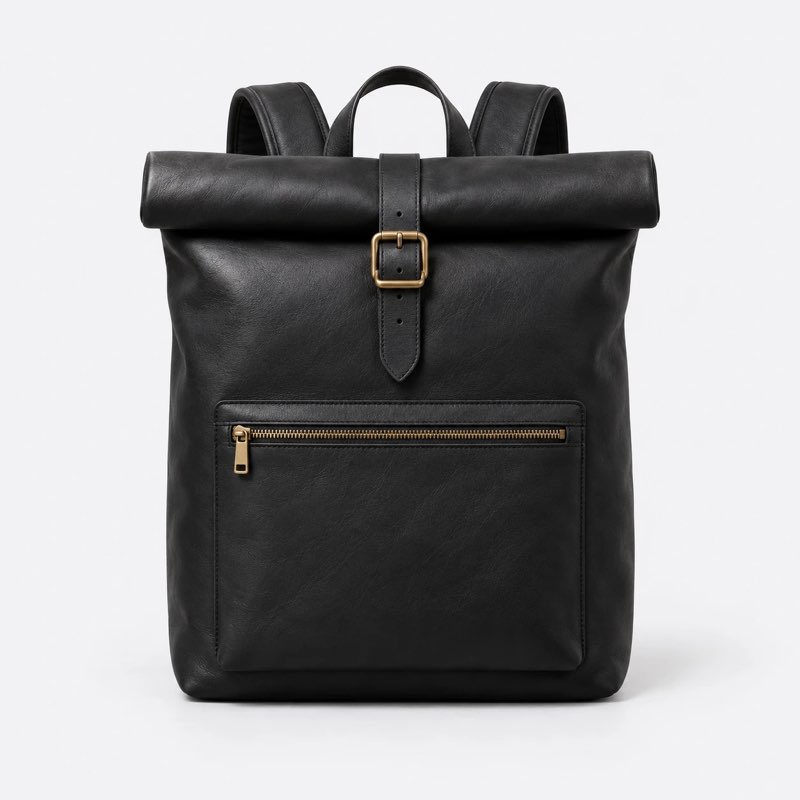
A hover gallery holds several images in one box. The first image shows by default. Each item is an invisible column, and the image of the column under the pointer covers the whole gallery. It works without JavaScript.

## Basic example

Wrap each image in a `.hover-gallery-item` and put the items in a `.hover-gallery`. Use as many items as you need.

```html
<div class="hover-gallery rounded w-33">
  <div class="hover-gallery-item">
    <img src="/static/products/backpack-1.jpg" alt="Black leather backpack, front view" />
  </div>
  <div class="hover-gallery-item">
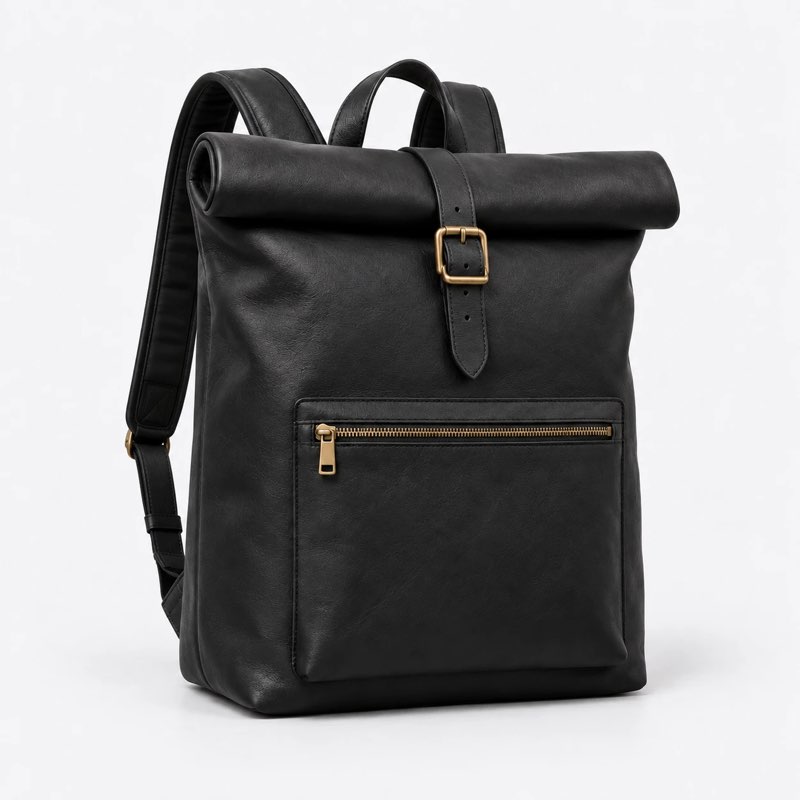
    <img src="/static/products/backpack-2.jpg" alt="Black leather backpack, view from the front left" />
  </div>
  <div class="hover-gallery-item">
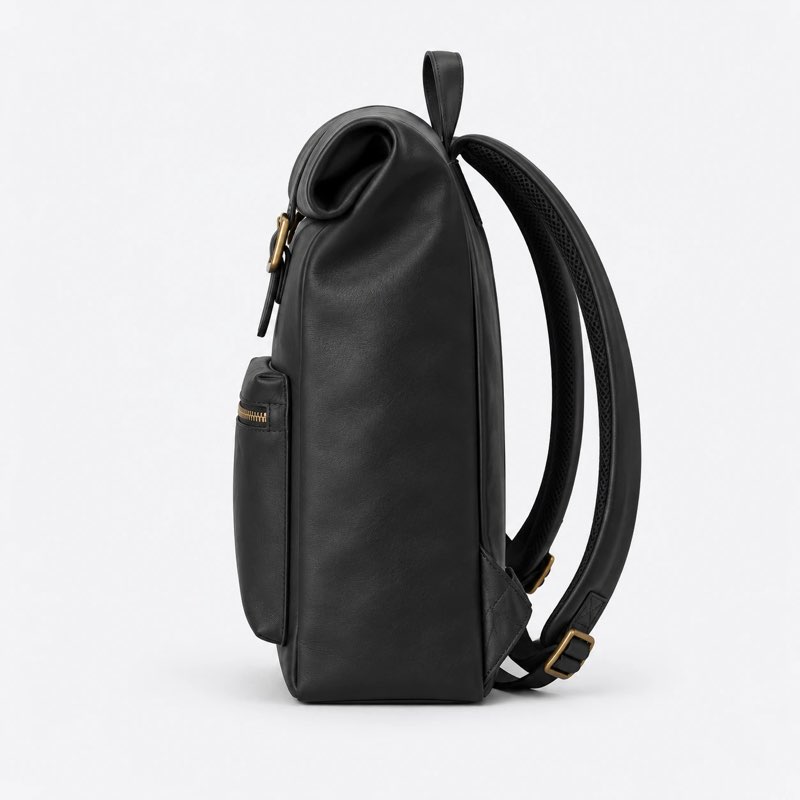
    <img src="/static/products/backpack-3.jpg" alt="Black leather backpack, side view" />
  </div>
  <div class="hover-gallery-item">
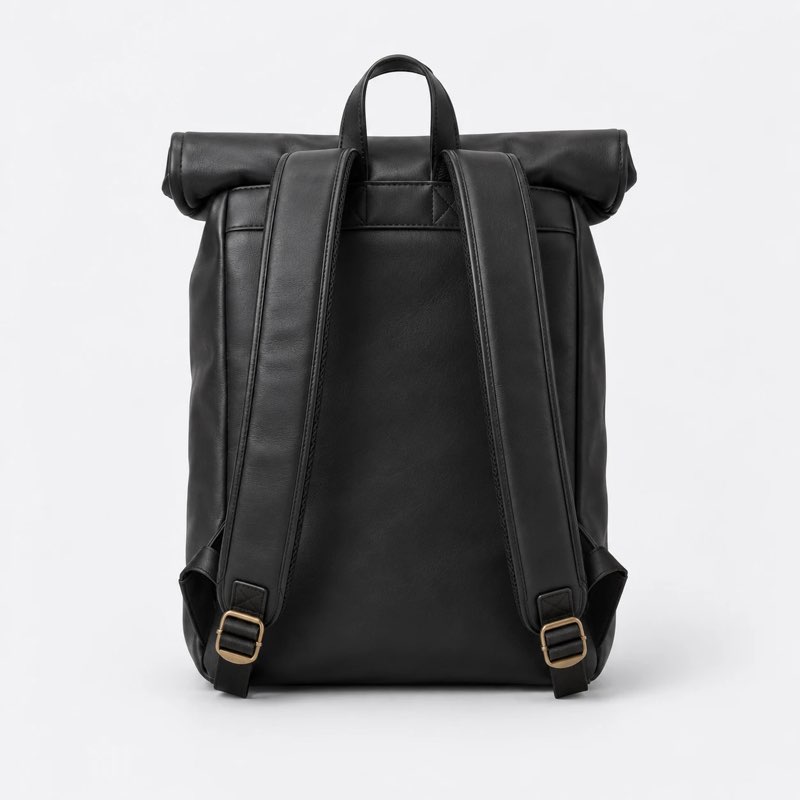
    <img src="/static/products/backpack-4.jpg" alt="Black leather backpack, back view" />
  </div>
</div>
```

## Indicators

Add `.hover-gallery-indicators` to show a bar for each image. The bar of the image on display is lit.

```html
<div class="hover-gallery hover-gallery-indicators rounded w-33">
  <div class="hover-gallery-item">
    <img src="/static/products/backpack-1.jpg" alt="Black leather backpack, front view" />
  </div>
  <div class="hover-gallery-item">
    <img src="/static/products/backpack-2.jpg" alt="Black leather backpack, view from the front left" />
  </div>
  <div class="hover-gallery-item">
    <img src="/static/products/backpack-3.jpg" alt="Black leather backpack, side view" />
  </div>
  <div class="hover-gallery-item">
    <img src="/static/products/backpack-4.jpg" alt="Black leather backpack, back view" />
  </div>
</div>
```

The bars are white and sit on a soft dark gradient, so they stay visible on light and dark photos. Set `--tblr-hover-gallery-indicator-scrim-bg` to `none` to remove the gradient, and `--tblr-hover-gallery-indicator-color` to change the bars.

## Aspect ratio

The gallery is a square by default and the images are cropped to fill it. Set `--tblr-hover-gallery-aspect-ratio` to change the shape.

```html
<div class="hover-gallery hover-gallery-indicators rounded w-50" style="--tblr-hover-gallery-aspect-ratio: 16 / 9">
  <div class="hover-gallery-item">
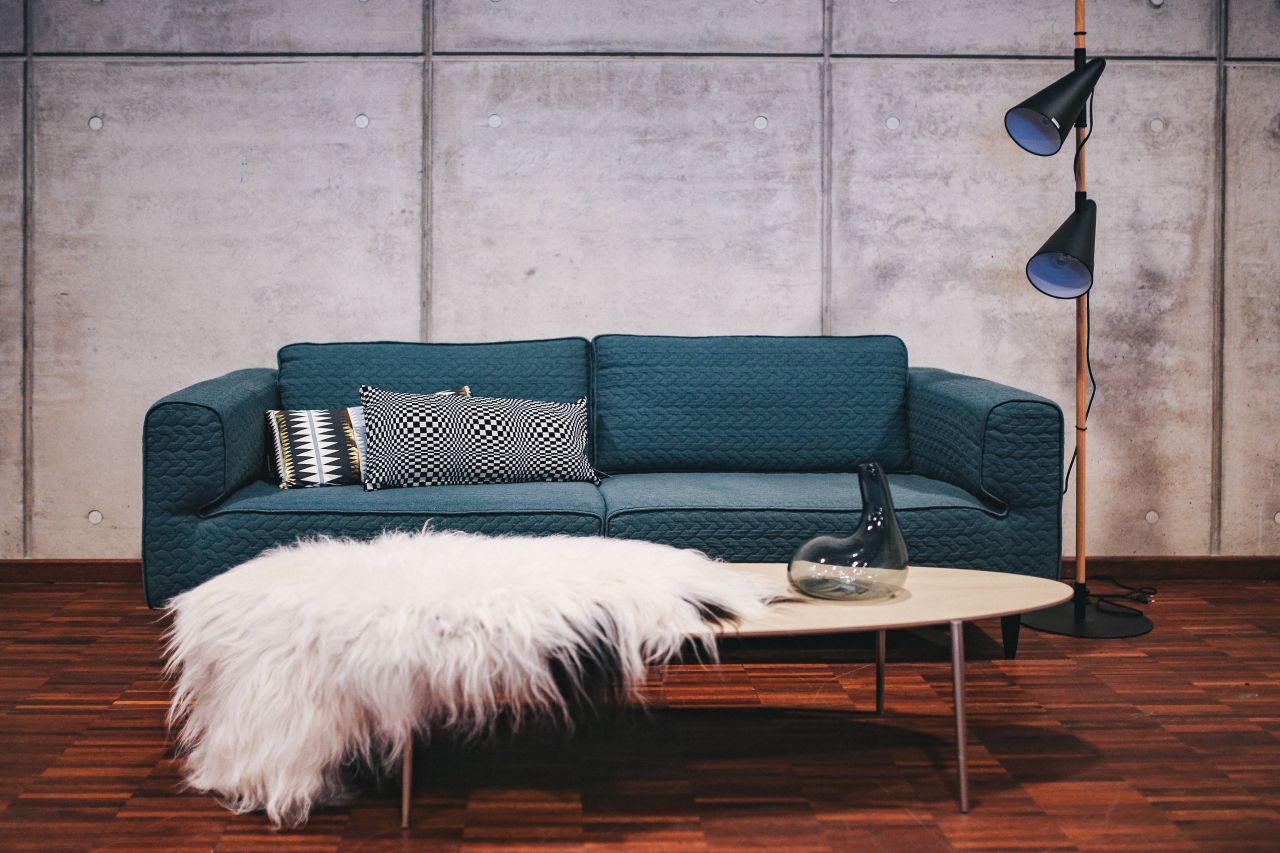
    <img src="/static/photos/blue-sofa-with-pillows-in-a-designer-living-room-interior.jpg" alt="Blue sofa with pillows in a living room" />
  </div>
  <div class="hover-gallery-item">
    <img src="/static/photos/city-lights-reflected-in-the-water-at-night.jpg" alt="City lights reflected in the water at night" />
  </div>
  <div class="hover-gallery-item">
    <img src="/static/photos/colorful-exotic-flowers-and-greenery.jpg" alt="Colorful exotic flowers and greenery" />
  </div>
</div>
```

## In a card

Add `.card-img-top` to use the gallery in place of the card image.

```html
<div class="card w-33">
  <div class="hover-gallery hover-gallery-indicators card-img-top">
    <div class="hover-gallery-item">
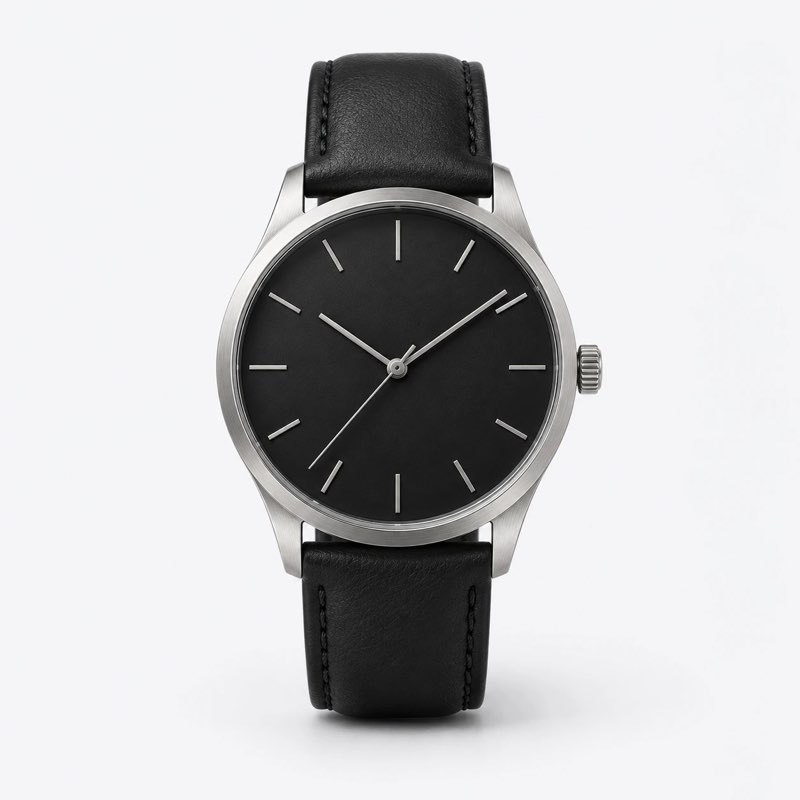
      <img src="/static/products/watch-1.jpg" alt="Steel watch with a black dial, front view" />
    </div>
    <div class="hover-gallery-item">
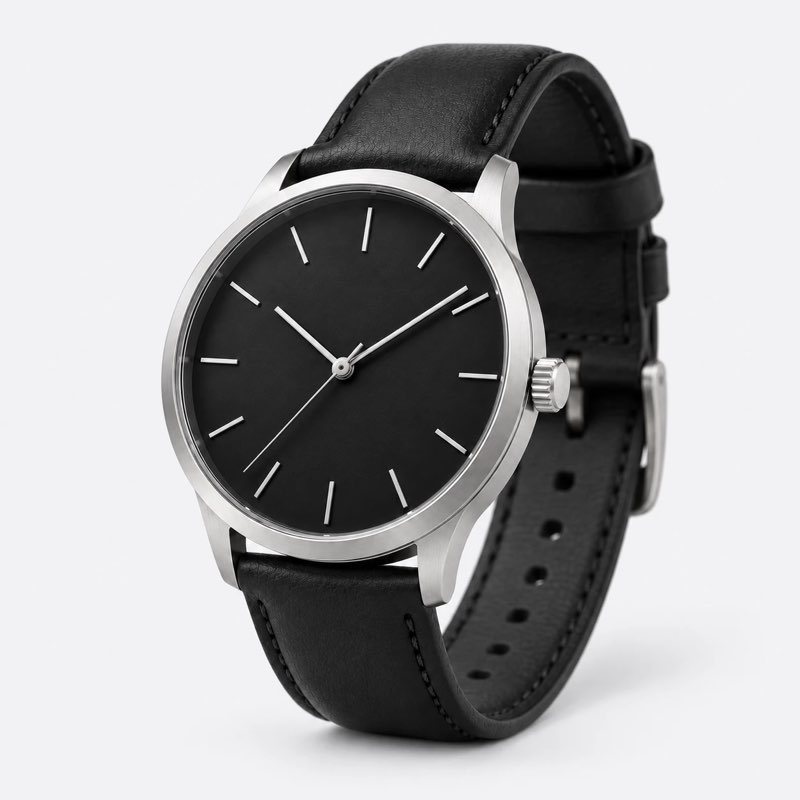
      <img src="/static/products/watch-2.jpg" alt="Steel watch, view from the front left" />
    </div>
    <div class="hover-gallery-item">
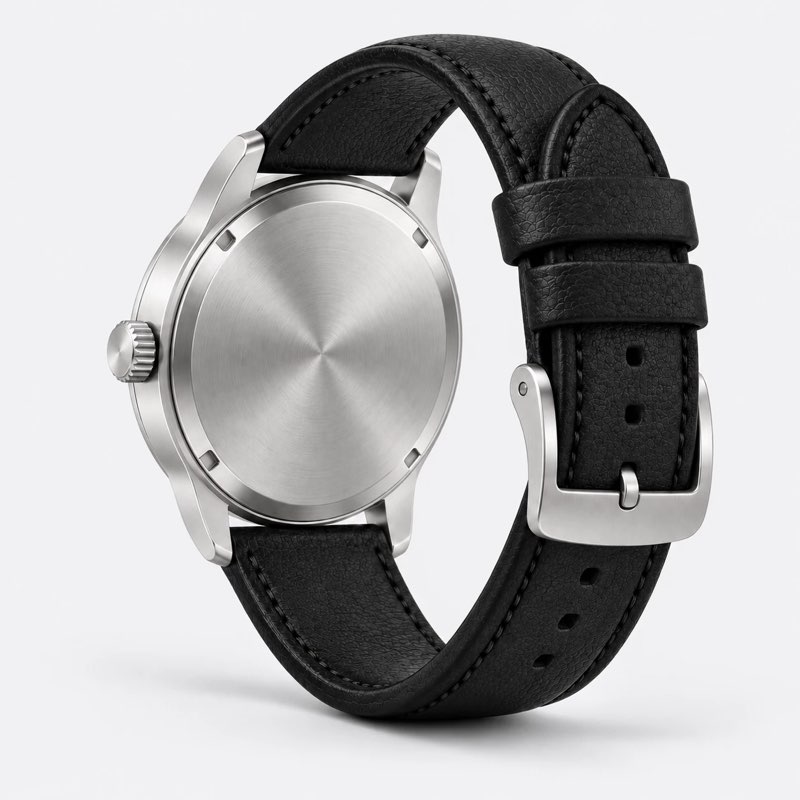
      <img src="/static/products/watch-4.jpg" alt="Steel watch, back view" />
    </div>
  </div>
  <div class="card-body">
    <h3 class="card-title">Steel watch</h3>
    <div class="text-secondary">$249</div>
  </div>
</div>
```

## Touch devices

On devices without hover, the gallery becomes a horizontal strip. Users swipe to see the next image, and each image snaps into place. The indicators are hidden there.

## Accessibility

- Give every image an `alt` text that says what this photo shows, not only the product name.
- Keyboard users see only the first image. Do not put information in the other images that is missing elsewhere on the page.
- When the gallery sits inside a link, the whole gallery leads to one place. Do not link single images to different pages.